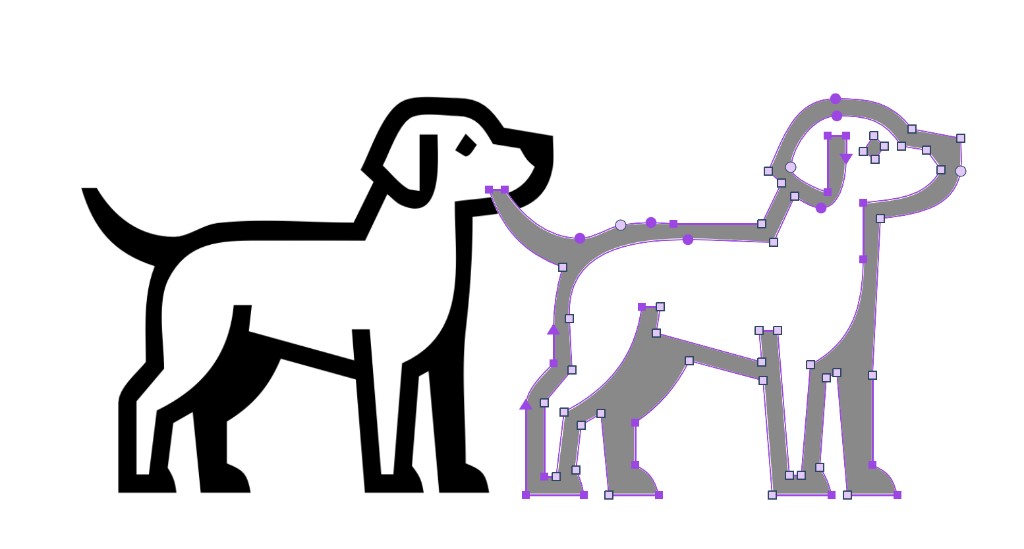
Vextra adds the contour tools type designers have had for years and Illustrator somehow never got. Slide a node along its own contour. Drop a node in, or take one out, without changing the shape. A rounded corner stays adjustable. Curve tension becomes something you can see and drag. And underneath it’s all still your ordinary Illustrator path, with your fills and your undo history.
Illustrator 2024 (28.7) and newer · macOS 13+ · Windows 10 and 11 · Seven-day free trial
Made by FontLab — the same curve machinery that powers professional font editors, brought to Illustrator.
This one’s real, by the way — click it and drag any node, handle, or the curve itself. It runs the same editing model as the plug-in, just in your browser.
Drag the curve•Smart Corners•Ink traps•Live G2•Tunni tension•Power Nudge•Curvature comb•Autotrace
Why Vextra
Six things you do a hundred times a day.
None of them are hard, exactly. They’re just fiddly enough that you feel it by five o’clock. Here’s how each one goes today, and how it goes with Vextra in the toolbar.
01
Every drag, coarse or fine
TodaySquint at identical little squares, click exactly on the right one, then work out which of the two handles owns the bend you want to change.
With VextraDrag nodes, handles, or any mix of them at once — the point under your pointer lights up before you press. And when a plain drag is too blunt, pull the curve itself: it follows gradually, adjusting both handles, so the contour settles into shape smoothly.
02
Rounding a corner
TodayPick a radius, expand it, hate it, undo, pick another one. Move the corner later and you start again.
With VextraA Smart Corner keeps the sharp node underneath and shows the rounded result. Drag for radius, Option-drag for tension, push past zero for an ink trap. Double-click turns it smooth, Alt-double-click expands it to plain nodes once it's final. Until then it stays live — a wrong radius next week is just another drag.
03
Getting two handles to agree
TodayDrag one, drag the other, squint, repeat, settle for a join that's nearly even.
With VextraTake the Tunni line between them. One drag scales both tensions, Option-drag shifts the balance to one side, a double-click evens them out, and arrow keys nudge the tension a percent at a time.
04
Moving a node, keeping the curve
TodayNudge one anchor and the two curves attached to it wander off on their own.
With VextraNudge brings the neighboring handles with it, so the curve keeps its character. Power Nudge spreads a bigger change across the contour and looks after the extremes.
05
Cleaning up a trace
TodayRun Simplify and hope. The slider that behaves on a poster will mangle a 20-pixel icon.
With VextraThe Soft Eraser only drops a node when one curve can do the work of two, and Optimizer rebuilds exactly the stretch you pick. Both adjust to the size of the artwork before touching anything.
06
Checking what you made
TodayPull out guides, measure with the ruler, squint at the bumps, delete the guides.
With VextraSwitch on stems, distances, corner angles, a readout that follows the pointer, or a curvature comb. Holding ` hides all of it for a moment so you can look at the bare shape.
In action
Watch it work.
Straight screen captures from Illustrator — no speed-ups, no retakes. Move your mouse over a clip and it plays.
Grab whatever is under the pointer
Drag
Nodes, handles, or the curve itself — point at it and drag. Select several nodes or handles first and one drag reshapes the whole stretch.
Drop a node on the curve
Ctrl+Alt+click
Ctrl-Alt-click a segment and a node appears right where you pointed, handles already set so the curve does not move a hair.
Delete nodes, keep the shape
Select · Delete
Select the nodes you do not need and press Delete. Vextra rebuilds the stretch they were carrying, staying as close to the original contour as it can.
Smooth or corner, one double-click
Double-click · Alt-drag
Double-click a node to flip it between smooth and corner. Hold Alt to drag a corner with its handles pulled in, and when a corner goes back to smooth, Vextra restores the handles where they used to sit.
Slide a node along its contour
Shift+Alt+drag
Hold Shift and Alt while dragging and the node travels along its own curve. The shape stays put; the node just finds a better spot on it.
Copy a stretch, break it, join it
Alt+drag
Select a run of nodes, hold Alt, and drag: the stretch peels off as a copy on its own contour. Drag one open end onto another and they join; Break opens the path back up at whichever nodes you have selected.
Nudge: small moves that keep the feel
Nudge · drag
With Nudge on, moving a node scales the handles around it in proportion. The curve keeps its character through the correction instead of denting where you pulled — the fix stays a fix, not a new problem two segments away.
Power Nudge: reshape the whole contour
Power Nudge · drag
Power Nudge spreads one drag through the contour, moving nodes and handles proportionally and looking after the important high and low points as it goes. The whole form follows your hand and still lands as one coherent shape.
G2: the join your eye stops noticing
Shift+Alt+double-click
A smooth node only promises that the two handles line up. How hard the curve bends can still jump as it crosses the node, and on a big logo or a glossy highlight that jump reads as a faint crease. Switch on Curvature and you can see it: a comb of spikes along the contour, longer where the bend is tighter, with a visible step wherever the flow breaks.
Shift-Alt-double-click a smooth node and it becomes a live G2 node. Vextra balances the bend on both sides so the comb runs through in one sweep, and keeps rebalancing it after every edit you make. What used to be minutes of nudging handles by eye now just happens on mouse-up.
Six tools, one panel
Everything happens on the artwork.
Vextra never copies your artwork into a separate window or asks you to import anything. It edits the path you selected, right where it sits. The panel carries the usual commands — Break, Join, Duplicate, Simplify, Nodes at Extremes, flips, alignment — and when the selected object is an image, an Autotrace button appears next to them.
Editor
Nodes, handles, segments, Smart Corners, G2 marks and Tunni controls, all in one tool. Marquee or lasso a range, slide a node along its own contour, Option-drag a selected run to clone it, drop in a node without moving the curve.
Eraser
Paint over the points you don't want with a round tip. Option-drag for the Soft Eraser, which only takes a node when the curve can spare it. Control-drag resizes the tip.
Optimizer
Click two points on a contour and everything between them comes back with fewer, cleaner curves. A green preview shows the exact stretch before you commit.
Knife
Drop a node where you point, break a contour at a node, or drag a line across the artwork and get a node at every crossing.
Scissors
Close two open ends, rebuild a corner out of two stray ones, or run two paths on until they meet. Click a corner and it builds a loop that resolves into one clean point.
Pencil
Draw over the part that's wrong and your stroke replaces it, without splitting the path. On empty canvas the same stroke just makes a new Illustrator path, editable straight away.
Trace and tidy
From bitmap to clean paths.
Vextra closes the loop from source image to finished artwork: trace the bitmap, weld what overlaps, and pull out the contours you want to keep.
Autotrace
Select a placed bitmap and an Autotrace button appears in the panel. One click builds paths right on top of the image, with nodes already set at the extremes, and hands them to the Editor. The original picture stays in the document.
Remove Overlap
Welds overlapping closed contours into one clean outline. Select a few nodes first and it processes only those contours, so you can weld one part of a compound path and leave the rest alone.
Separate Contours
The opposite move: lifts the selected contours out of a compound path into their own Illustrator object, ready to recolor, move, or reuse on its own.
Straight out of Autotrace, no cleanup: the placed bitmap on the left, the trace on the right — every node exactly where the tracer put it.
How it works
Everything stays editable until you decide it’s finished.
Vextra works on one path at a time, directly in your document. The only thing that changes is the curve you dragged.
1
You just select a path and start
Pick a Vextra tool while a path or compound path is selected and it becomes editable, with the fill, stroke, opacity and effects it already had. If Vextra can’t handle an object, it simply doesn’t touch it.
2
The clever bits stay editable
When you round a corner or ask for a G2 join, Vextra doesn’t rewrite your path into a pile of new nodes. The original geometry stays underneath while Illustrator paints the finished result, which is why you can still grab that corner a week later and change the radius.
3
Expand when someone else needs the file
One command turns the live features into plain Illustrator nodes, for the whole contour or just the parts you selected. The usual habit is to keep a live master file and expand a copy before sending it out.
The small stuff
Things you notice by lunchtime.
Node shapes tell you the type without a click: square for sharp, circle for smooth, triangle for tangent, a ribbon for an open end, an outer ring for live G2.
Two nodes sitting on top of each other get a red diamond behind them — the duplicates Illustrator never tells you about.
Smart Guides snap like to like. Nodes find nodes, handles find handles, and a node never jumps onto a handle. Control turns them off for one drag.
Arrow keys move by 1, 10 or 100 points, and tune an active Tunni control by 1% or 10%.
Escape in the middle of a drag puts the path back exactly as it was when you pressed the mouse.
Quick Help shows a little card with the gestures for whatever's under your pointer. Useful for the first week, easy to switch off after.
Nodes shrink as you zoom out, and cleanup strength follows the artwork's size.
Fill, stroke, opacity and effects stay on the path while you edit.
Pricing
Subscribe monthly or annually.
One subscription covers the whole plug-in on two of your computers, Mac or Windows in any mix, with updates included. The first seven days are a free trial, and you can cancel whenever.
Best value
Annual
Save 25%
€$135/ year
€$11.25 a month, paid once a year — 25% cheaper than paying monthly.
Flexible
Monthly
€$15/ month
Same plug-in, no commitment past the current month.
Try first
Trial
Free/ 7 days
The whole plug-in, no card required. It just stops after a week.
Both plans are the full plug-in: all six tools, every assistant, Mac and Windows, two computers, updates and support. Same price in euros and US dollars. Payments are handled by FastSpring, our authorized reseller.
FAQ
Questions about Vextra
Every tool and command is covered in detail in the user manual.
Do I have to change how I work?
No. Vextra is six extra tools in Illustrator’s toolbar and one dockable panel. Your documents, layers, styles and shortcuts carry on as before, and you can drop back to Illustrator’s own tools halfway through a file.
Is there a Windows version?
Yes. Vextra runs natively on Windows 10 and 11 (x64), with the same tools and the same license as the Mac build.
Which Illustrator versions and machines are supported?
Adobe Illustrator 2024 (28.7) and newer, including the 2025 and 2026 releases. On macOS 13 or later Vextra ships as a universal binary for Apple Silicon and Intel; on Windows it runs natively on x64.
Is there a free trial?
Yes. The first time Vextra runs with an internet connection it starts a seven-day trial of the whole plug-in. Reinstalling doesn’t buy you a second one.
What happens to my paths?
They stay ordinary Illustrator paths and compound paths. Smart Corner and G2 intent is stored on the path itself and travels with it through save, reopen, copy and paste, so the source geometry stays simple and editable until you expand it.
Can I send files to someone without Vextra?
Yes. Expand the selection or the contour and what’s left is plain Illustrator geometry. Most people keep one live master document and expand a copy for delivery.
Does it work with undo?
Yes. Every Vextra edit is a normal Illustrator undo step, so Cmd-Z takes back exactly one action at a time — just like with Illustrator's own tools.
How many computers can I use?
A single-user subscription activates on two computers, and they don’t have to be on the same platform. Deactivate one to free the slot for another machine.
Do I have to stay online?
No. After activation Vextra holds a signed license lease, so you can keep working offline and it checks in again when the lease runs out.
What happens if I cancel?
You keep everything through the period you paid for. After that the editing tools lock, but your documents still open and existing artwork still renders. Manage or cancel from your FastSpring order account.
Vexy Vextra
Give it a week on real work. That’s what the trial is for.